Google your own business: a five-minute check
Get your phone out and search your business the way a customer would. Here’s what to look at, a minute at a time, and what to do about anything that’s wrong.
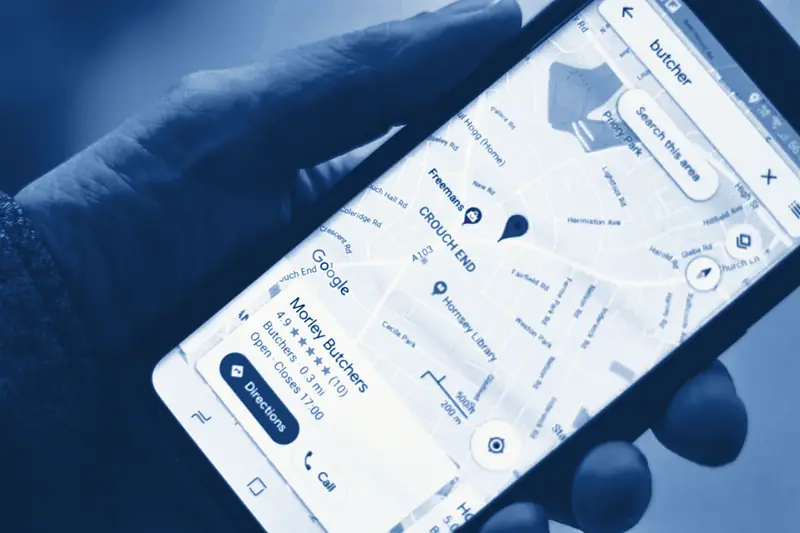
You probably never look at your own business the way a customer does. You know your opening hours, so you don’t check them on Google. You know where you are, so you’ve never tapped Directions. Meanwhile the people who haven’t met you yet are deciding whether to ring you from a small panel on their phone screen.
This check takes five minutes and costs nothing. Do it on your phone, because that’s where most of your customers will be looking. Each minute below covers one part of what comes up. Note down anything that’s wrong as you go and fix it afterwards, so the check itself stays quick.
Before you start, open a private tab on your phone: Incognito in Chrome, or Private in Safari. If you’re signed in to the Google account that manages your listing, Google shows you the owner’s view with edit buttons all over it. A private tab shows you what everyone else sees.
Google’s own figures show why that panel is worth five minutes of your time.
2.7×
more likely to see a business as reputable when its Google profile is complete, Google says.
70%
more likely to visit a business with a complete profile, by Google’s figures.
74%
of people look for reviews written in the last three months (BrightLocal, 2026).
Minute one: find your listing
Search your business name and your town, then open Google Maps and do the same. You’re looking for one listing, with your name spelt the way you spell it, pinned in the right place.
- A second listing for the same business, often at an old address or under a previous owner’s name. Customers can end up at the wrong one, and your reviews get split between the two.
- A “Temporarily closed” or “Permanently closed” label when you’re open. Anyone can suggest that a place has closed, and it does happen by mistake.
- No listing at all. If nothing comes up, that’s your first job. A Google Business Profile is free, and my guide to getting into Google’s Map Pack covers setting one up.
To deal with a duplicate, open it in Google Maps, tap Suggest an edit and report it as a duplicate of your real listing. If it won’t go, Google’s Business Profile support team can remove it or merge it into yours.
Minute two: hours, phone and address
Read the opening hours on your listing as if you’d never seen them. Are they this week’s hours? If you’ve changed your days since you set the listing up, Google won’t know unless you tell it. Then tap the phone number. It should ring a phone someone answers, not an old landline or a mobile you stopped using two years ago.
Customers can suggest changes to your listing too, including your hours, and you can’t switch that off. Google’s help pages now say that when a suggested edit needs your say, you get four days to accept or reject it. If you don’t answer, Google may publish it anyway, as long as something else online seems to back it up, such as an old page on your own website. So make sure Google’s emails reach an inbox you actually read.
With Christmas coming, add your bank holiday opening times now, under special hours on your profile. Customers see them on the listing, which saves anyone a wasted trip.
Minute three: the photos
Look at the first few photos on your listing, because they’re the ones people see before they scroll. Are they yours? Customer photos often end up at the front: a blurry menu, the shop before your refit, the car park. You can’t delete a customer’s photo, although you can report one that breaks Google’s rules.
What you can do is add good photos of your own, and keep adding them. The most useful are the front of your premises, so people recognise it when they arrive, followed by the inside, your work, and you or your team. Check your logo and cover photo while you’re there. If the cover photo is a stock image or something from years ago, replace it.
Minute four: the reviews
Tap through to your reviews and sort them by newest. Two things matter here: when the last one was written, and whether you replied to it.
In BrightLocal’s 2026 survey, where the 74% figure above comes from, 80% of people said they’re more likely to use a business that replies to all of its reviews. Half said generic, copied-and-pasted replies put them off. It’s a survey of American adults, so treat the numbers as a guide rather than a measure of your own customers.
If your newest review is a year old, it’s time to start asking again. If some reviews have no reply, answer them, starting with the most recent and any negative ones. Keep each reply short and about what that person actually said. There’s more on this in how to get more Google reviews, without breaking the rules.
Minute five: tap through to your website
Finally, tap the website link on your listing and watch what happens. It should open your current website, not an old one, a Facebook page or an error. Check that it loads quickly on mobile data as well as on your Wi-Fi at home, that you can tap the phone number to call, and that the hours and prices match what Google says.
That last part matters more than it used to. As I said in minute two, Google can use what’s on your website to decide whether a suggested change to your listing is right, so a site still showing last year’s hours can work against you. If the site is slow or awkward on a phone, five things quietly costing you customers on your website goes through the usual fixes.
Your five-minute checklist
- Search in a private tab, by your business name and town, on Google and on Maps.
- One listing only: no duplicates, and not marked as closed.
- This week’s hours, with bank holiday hours set as special hours.
- A phone number that rings somewhere it gets answered.
- Your own photos at the front, including the outside of your premises.
- A recent newest review, and a reply on every one.
- A website link that works and opens quickly on a phone.
- The same hours and details on your website as on Google.
Once that’s done, try one more search: what you do and where, such as “electrician Staines” or “café Egham”, the way a new customer would. If you’re not in the three results under the map, the Map Pack guide is the next thing to read.
Then put a reminder in your calendar to run this check again every few months, and before each bank holiday. It takes five minutes every time.
Further reading: Google’s Business Profile Help. Figures on complete profiles are from Google’s Business Profile help pages. Review figures are from BrightLocal’s Local Consumer Review Survey 2026, a survey of 1,002 US adults.